Software Installers
Are you tired of having to google for all the software you want to use whenever you have a new computer or when you're looking for something new? Well, I have a few ways to make that easier for you.
This section is all about tools that can install multiple apps for you at the same time and from the same place, saving you lots of time finding the installers for everything you need separately.
Ninite
Download
First we have Ninite.
Ninite is more of a website than something you actually install.
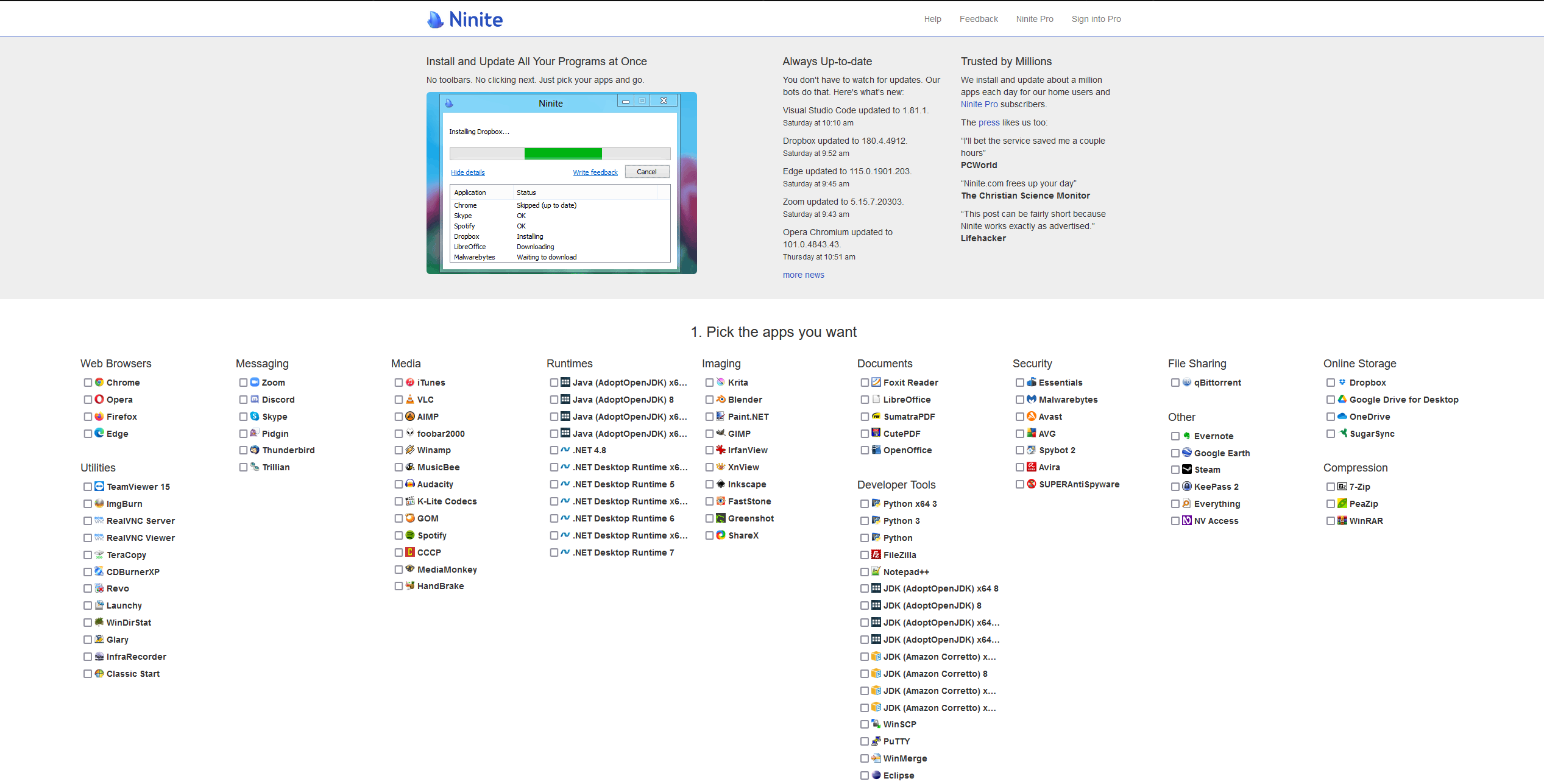
Just go to the website (https://ninite.com/), select what software you want, click on "Get Your Ninite", download and run the installer. Ninite will install the latest version all the software you selected automatically, it rejects useless extra junk that the software might want to install as well. Because the Ninite installer installs the latest versions you can also use it do update the software later on.
In my opinion tho, Ninite has a very limited selection of software, it has 99 apps, a lot of which are alternatives to each other: multiple browsers, PDF readers, antivirus's, and multiple versions of the same software: 4 versions of JDK (AdoptOpenJDK), 4 versions of JDK(Amazon Corretto), 4 versions of Java (AdoptOpenJDK) and even more versions of .Net Desktop Runtime. It even has software that has been discontinued and is no longer supported, like Launchy, InfraRecorder, ImgBurn, CutePDF, CCCP and probably more.
And because it is a website, if you want something new in your installer you have to go back to the website an select everything again, which can get annoying.
That's why I would only recommend Ninite if you have a USB stick with a Ninite installer on it for a quick setup of your computer with some basic software.
Chocolatey
Download
Next up is Chocolatey.
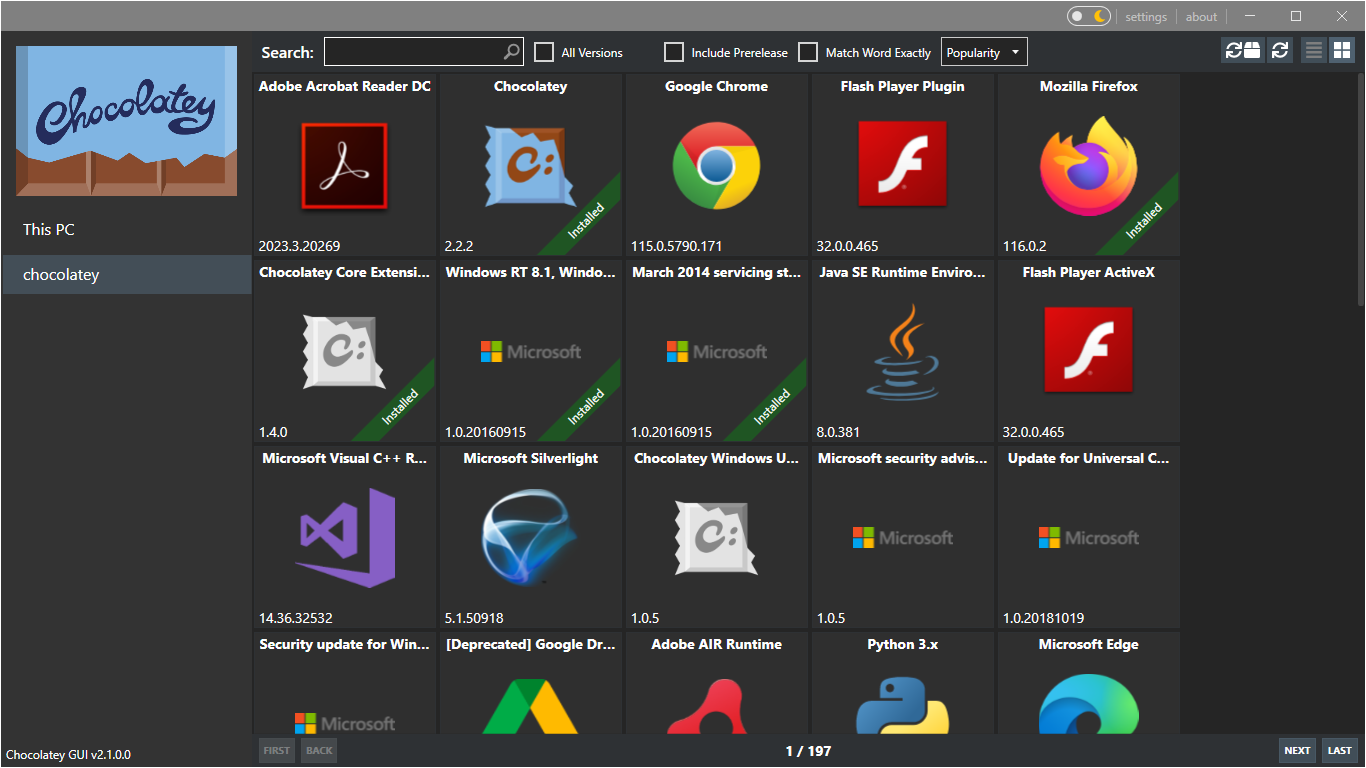
This one can be used in both the command line and as a graphical interface.
Unlike Ninite, Chocolatey has more than 10 thousand unique packages in its arsenal, this also includes alternatives and different versions but as you can see, you have way more chance to find what you're looking for with Chocolatey than with Ninite.
The Chocolatey CLI (Command line interface) is arguably more powerful than the GUI (Graphical user interface) though.
In the CLI you can also install multiple applications at once, you can update all your applications, tell applications not to update, export installed applications and much more, however, for some applications you will have to know the exact name, like notepad++ is notepadplusplus, which makes sense but you still have to know it.
To get Chocolatey all you have to do is search for command prompt in windows, open it as administrator, and type
winget install chocolatey
You might have to restart your pc after installing Chocolatey in order to use it.
To install something, let's say firefox, just type
choco install firefox
If you don't want the prompt asking for confirmation, you can use
choco install firefox -y
If you want to install multiple packages at once, just put them after each other like so:
choco install firefox notepadplusplus steam chrome -y
To update your installed apps, use
choco upgrade all
Or to NOT update a program you can use
choco pin add -n notepadplusplus
As mentioned above, Chocolatey also has a graphical interface, to install this one you have to install chocolatey first, and then run
choco install chocolateygui
after that, you can do everything from there.
WingetUI
Download
The last one I'll talk about is WingetUI.
As you may have noticed, we used winget to install chocolatey, so what's winget?
Well, Winget is Windows' own package manager, it is way newer than chocolatey (2020 and 2011 respectively) so chocolaty has a large community and more packages and features than winget.
WingetUI however, is not from windows itself, it's from a separate developer and entirely community driven.
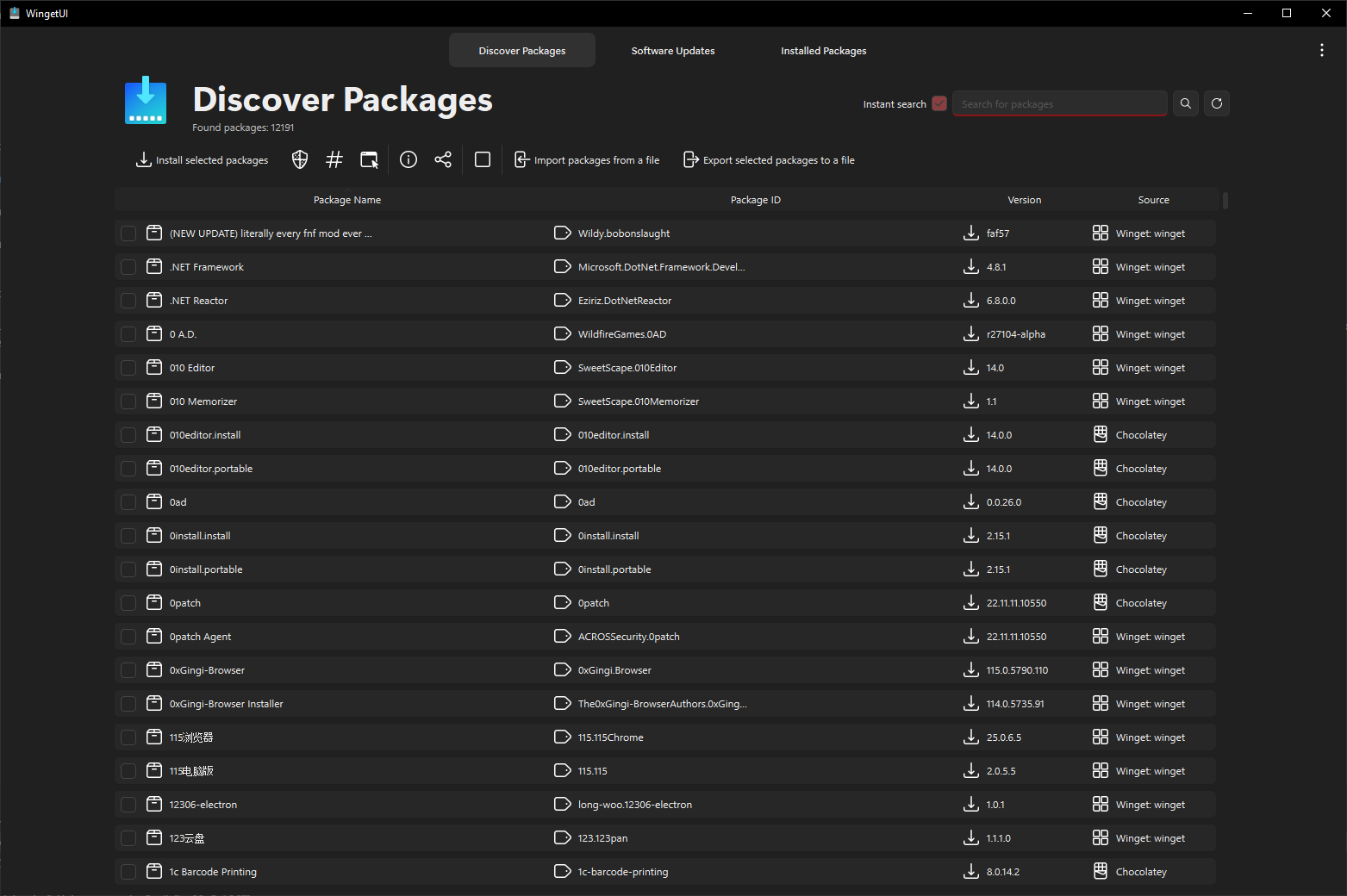
The difference between Winget and WingetUI, other than WingetUI being a graphical interface, is that WingetUI gets it's packages from multiple package managers: Winget (including Microsoft Store), Scoop, Chocolatey, pip and npm.
Unlike most package managers WingetUI can also detect software that you installed before and update them.
So WingetUI isn't exactly a package manager, but it combines multiple package managers to find as many packages as possible (over 14 thousand) and adds it's own features on top.
Like the others mentioned, WingetUI can also export and import your installed packages so you can easily install them again later on on a new pc.
To install WingetUI you have a few options, the recommended one is to go to https://github.com/marticliment/WingetUI#readme and click on the "Downloads@x.x.x" button.
You can also install WingetUI through Winget by going to the command prompt like with chocolatey and typing
winget install wingetui
or through Scoop by typing
scoop bucket add extras
scoop install extras/wingetui
you'll have to have scoop already installed for that though.
WingetUI is not downloadable via Chocolatey (yet).