PowerToys
Download
If you've never heard of PowerToys, it's a set of utilities for power users to tune and streamline their Windows experience for greater productivity. It is developed by Microsoft and the Power Toys community.
And yes, PowerToys deserves it's own section, it's filled with small features that help with specific tasks to utilities that you never knew you needed.
Most of its features have their own keyboard shortcut, you can tweak how they look, turn them off if you find them unnecessary, exclude apps from specific features and much more.
Each feature has many more settings and customizability than I will cover here so I highly recommend you check it out if any of these interest you.
All of its features are explained in PowerToys itself but I'll list and explain them all here as well.
Always On Top
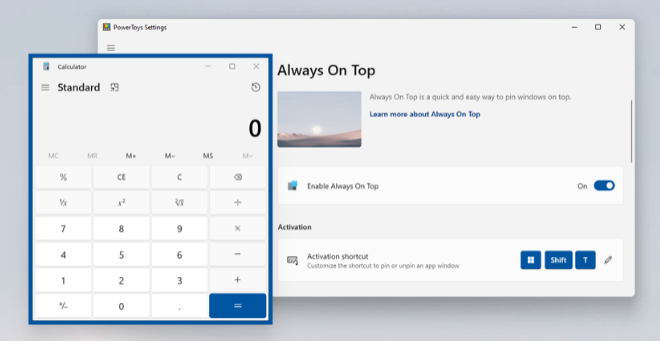
Always On Top improves your multitasking workflow by pinning an application window so it's always in front - even
when focus changes to another window after that.
Shortcut: Win + Ctrl + T
Awake
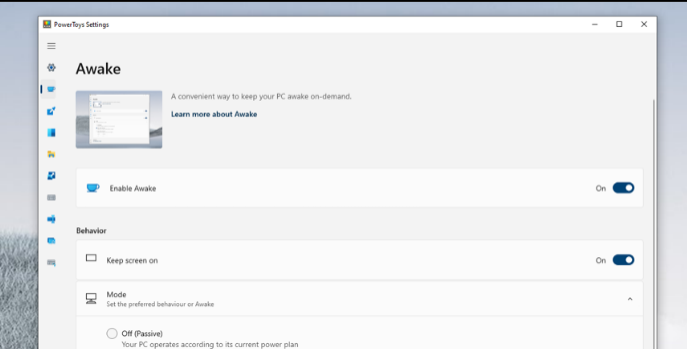
Awake is a Windows tool designed to keep your PC awake on-demand without having to manage its power settings.
This behavior can be helpful when running time-consuming tasks while ensuring that your PC does not go to sleep or
turn off its screens.
Color Picker

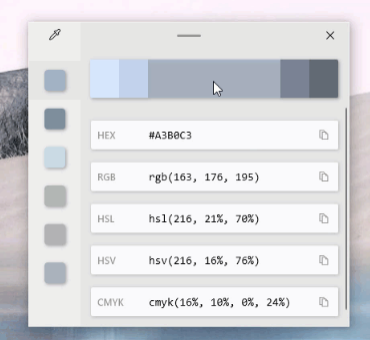
Color Picker is a system-wide color selection tool for Windows that enables you to pick colors from any currently
running application and automatically copies it in a configurable format to your clipboard.
Shortcut: Win + Shift + C
Fancy Zones
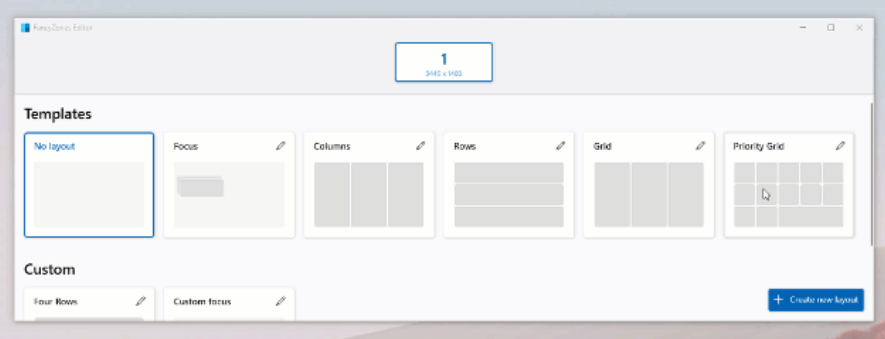
FancyZones is a window manager that makes it easy to create complex window layouts and quickly position windows
into those layouts.
You can also make your own custom layouts with shortcuts to quickly switch between them
Editor Shortcut: Win + Shift + `
Layout Shortcut: Win + Ctrl + Alt + number (you can choose what number corresponds to what custom layout)
File Locksmith
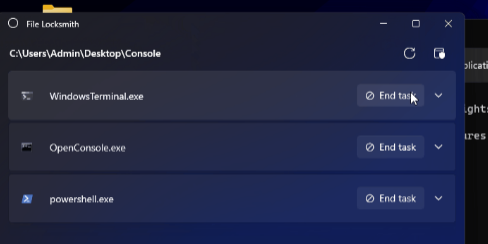
File Locksmith lists which processes are using the selected files or directories and allows closing those processes.
In File Explorer, right-click one or more selected files and select What's using this file? from the context menu.
File Explorer add-ons
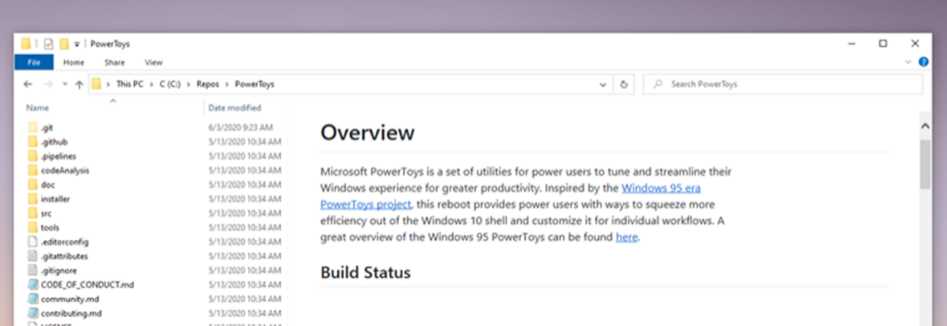
Power Toys introduces add-ons to the Windows File Explorer that will enable files like Markdown (.md), PDF (.pdf),
SVG (.svg), STL (.stl), G-code (.gcode) and developer files to be viewed in the preview pane. It introduces File Explorer
thumbnail support for a number of these file types as well.
Open File Explorer, select the View tab in the File Explorer ribbon, then select Preview Pane. From there, simply click on one of the supported files in the File Explorer and observe the content on the preview pane!
Hosts File Editor
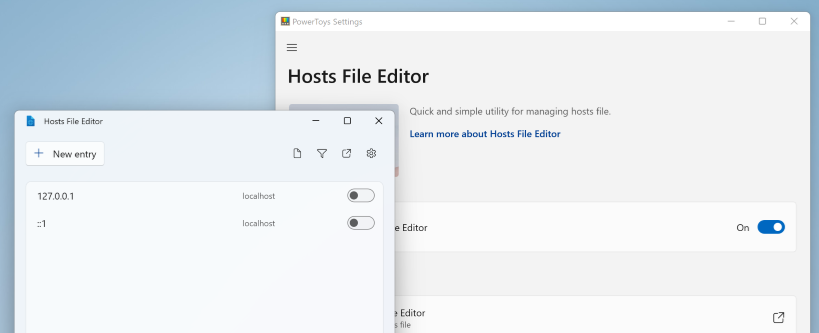
Hosts File Editor is a quick and simple utility for managing hosts file.
Image Resizer
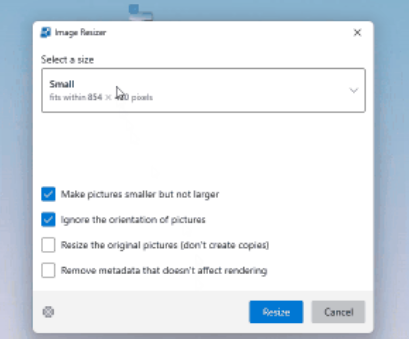
Image Resizer is a Windows shell extension for simple bulk image-resizing.
In File Explorer, right-click one or more image files and select Resize pictures from the context menu.
Keyboard manager
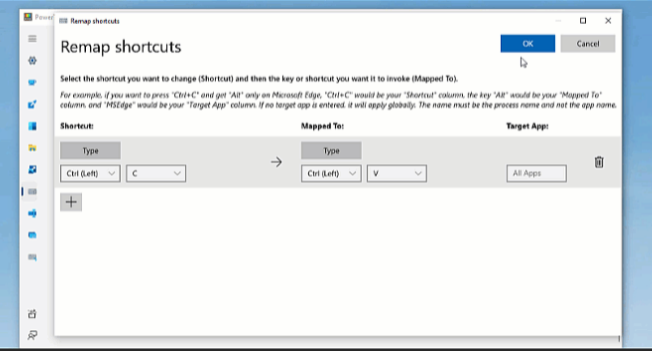
Keyboard Manager allows you to customize the keyboard to be more productive by remapping keys and creating
your own keyboard shortcuts.
Launch PowerToys Settings, navigate to the Keyboard Manager menu, and select either Remap a key or Remap a shortcut.
Mouse Utilities

A collection of utilities to enhance your mouse.
Find My Mouse
Shake the mouse or press the left Ctrl key twice to focus the mouse pointer.
Mouse Highlighter
Use Win + Shift + H to highlight left and right mouse clicks.
Mouse Jump
Use Win + Shift + D to jump the mouse pointer quickly to anywhere on your desktop.
Mouse Pointer Crosshairs
Use Win + Alt + P to draw crosshairs centered around the mouse pointer.
Mouse Without Borders

Mouse Without Borders enables using the mouse pointer, keyboard, clipboard and drag and drop between machines
in the same local network.
Use the Settings screen on each machine to connect to the other machines using the same key. If a connection is not working, it may be necessary to add an exception to the Windows Firewall.
Paste As Plain Text
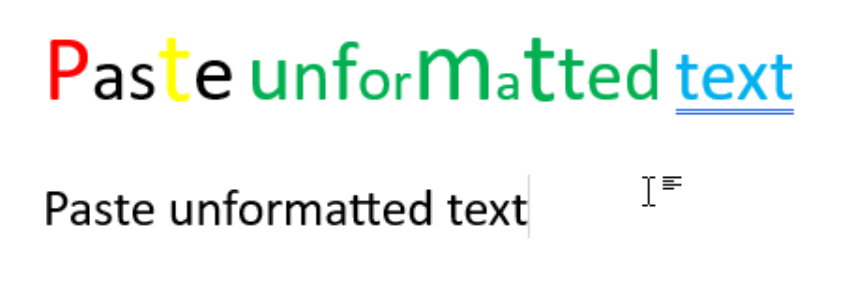
Paste As Plain Text strips rich formatting from your clipboard data and pastes it as non-formatted text.
Shortcut: Win + Ctrl + Alt + V
Peek
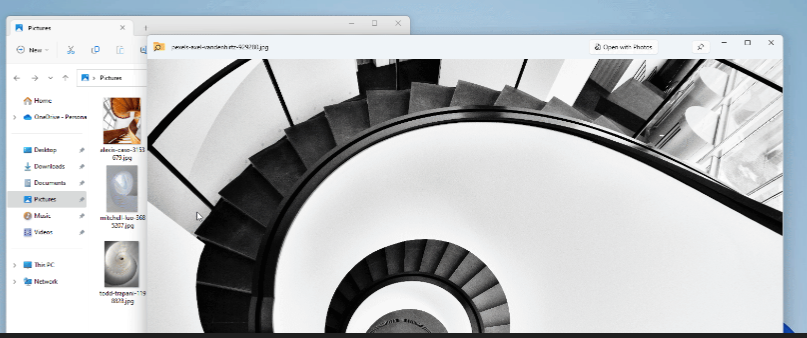
A lightning fast file preview feature for Windows.
Shortcut: Ctrl + Space (On a selected file in File Explorer)
PowerRename
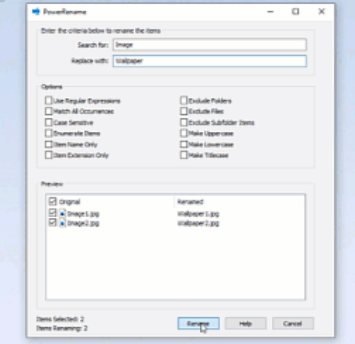
PowerRename enables you to perform simple bulk renaming, searching and replacing file names.
In File Explorer, right-click one or more selected files and select PowerRename from the context menu.
PowerToys Run
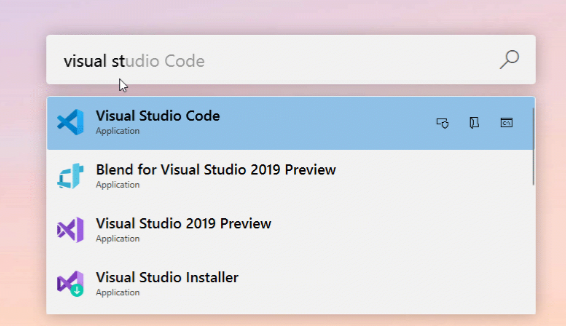
Power Toys Run is a quick launcher for power users that contains some additional features without sacrificing
performance.
Shortcut: Alt+ Space
Quick Accent
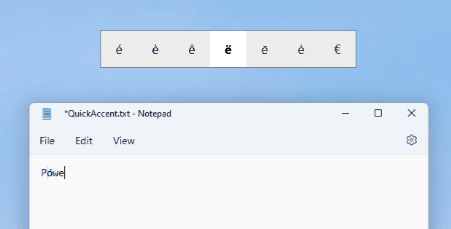
Quick Accent is an easy way to write letters with accents, like on a smartphone.
While holding the key for the character you want to add an accent to, press ←, → or space.
Registry Preview
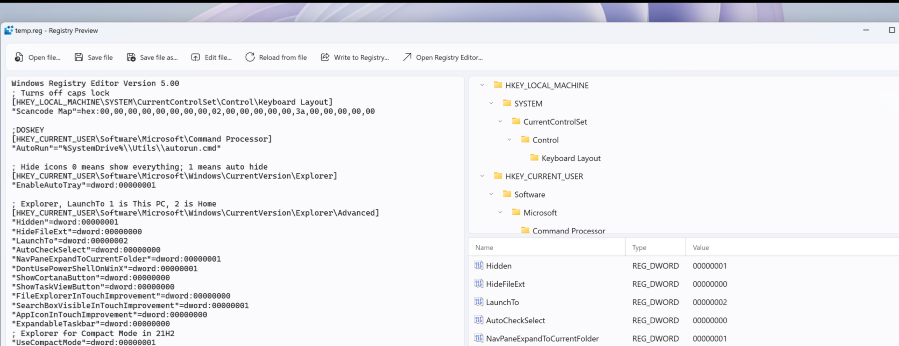
Registry Preview is a quick little utility to visualize and edit complex Windows Registry files.
Screen Ruler
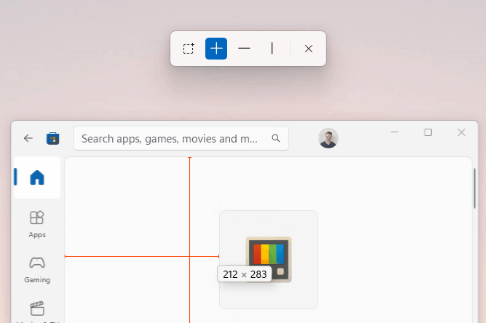
Screen Ruler is a quick and easy way to measure pixels on your screen.
Shortcut: Win + Shift + M
Shortcut Guide
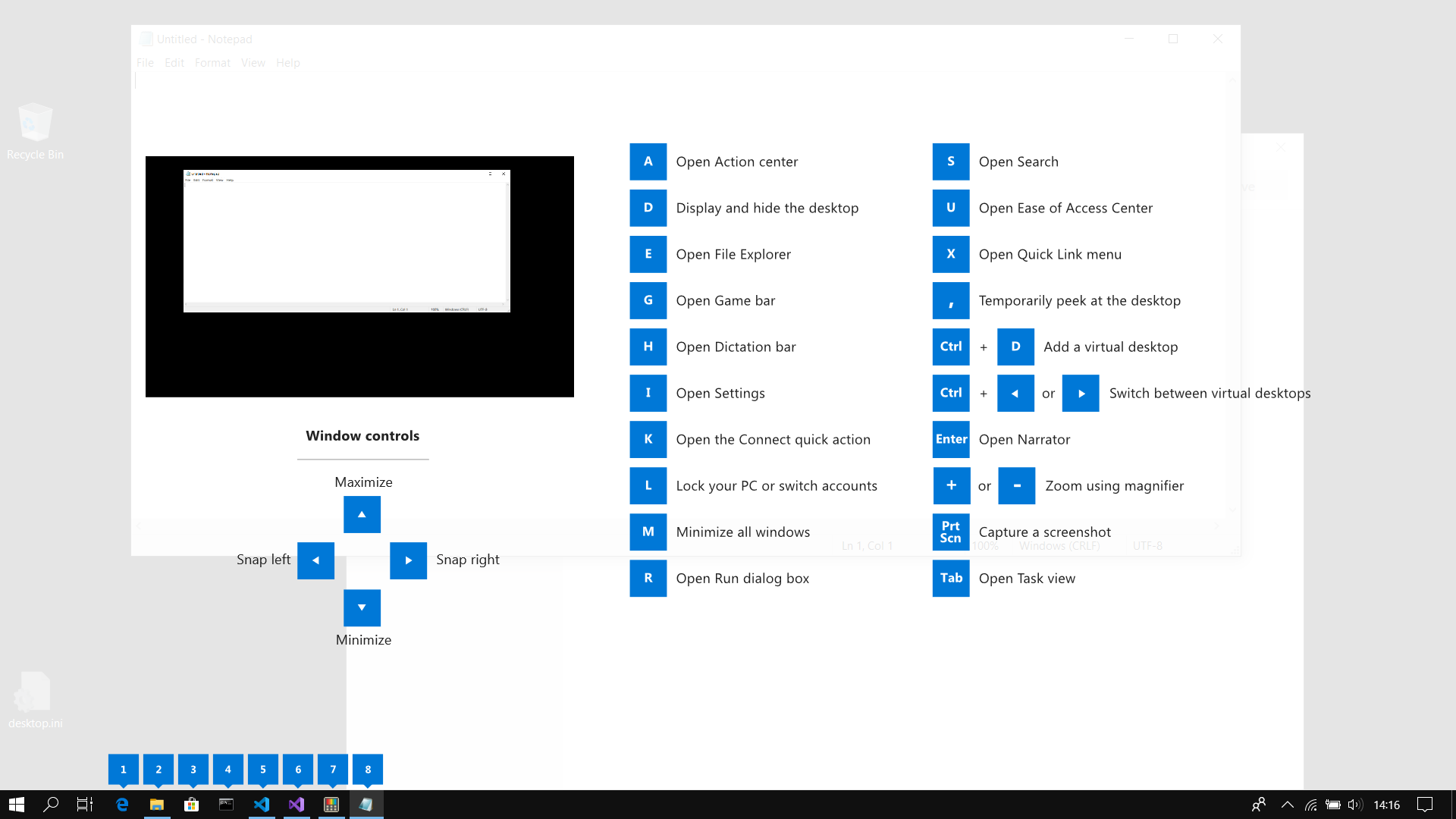
Shortcut Guide presents the user with a listing of available shortcuts for the current state of the desktop.
Shortcut: Win + Shift + / or hold Win
Text Extractor
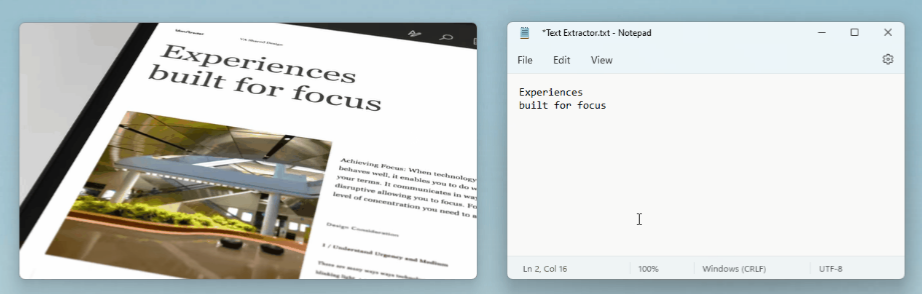
Text Extractor works like Snipping Tool, but copies the text out of the selected region using OCR and puts it on the
clipboard.
Shortcut: Win + Shift + T
Video Conference Mute

Video Conference Mute allows users to quickly mute the microphone and tum off the camera while on a conference call with a single shortcut, regardless of what application has focus on your computer.
Toggle both Shortcut: Win + N
Toggle mic Shortcut: Win + Shift + A
Hold to speak Shortcut: Win + Shift + I
Toggle camera Shortcut: Win + Shift + O