Other Software
I'll mostly talk about specific applications here that I generally find useful, this does not mean these are the only ones for that purpose or that they are the best ones.
Microsoft ToDo
Download
First up is MS ToDo, this software is mostly just a listing app but it has some nice features.
You can have 4 levels of depth:
- A group
- A list
- A task
- A step
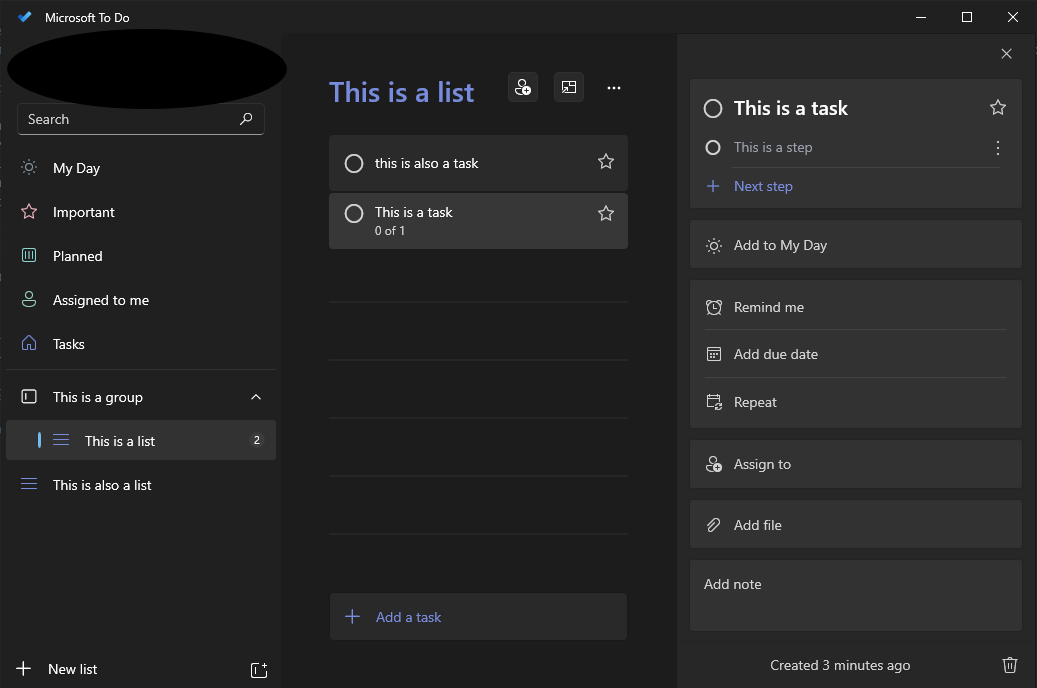
As you can see in the screenshot lists don't have to be in a group though the rest of the structure does stay the same.
This level system allows it to be pretty easily organizable, though sometimes I wish it had just one more level.
Nothing is able to be multi-lined either, I found this to be mostly annoying in steps when I wanted to list a few things.
You can add a due date to tasks, let it remind you at a certain time and repeat however much you want; every x days, every x weeks on specific days, every x months and every x years.
However I have noticed that you can not repeat the reminder, only the due date.
When a task you add a due date to a task it will be added to the "Planned" list automatically, when it's the day of the due date that task will be added to "My Day".
When you complete a repeated task the current one will go in the "Completed" section (which you can collapse) and a duplicate task will be created with a new due date, reminder time and all the steps the original task had.
There used to be a feature where completed tasks get deleted automatically but they seem to have removed that at some point.
1 useful feature they have is that you can just type a date (relatively also works) in the task field when creating a new task and it will automatically recognize this and add it as due date.
Or you can type a date and time and it will add that as a reminder, you can't add due date and reminder in the same way together.


Something you can do to make your lists more distinct is adding a color to the title or a background and an emoji as the list icon.
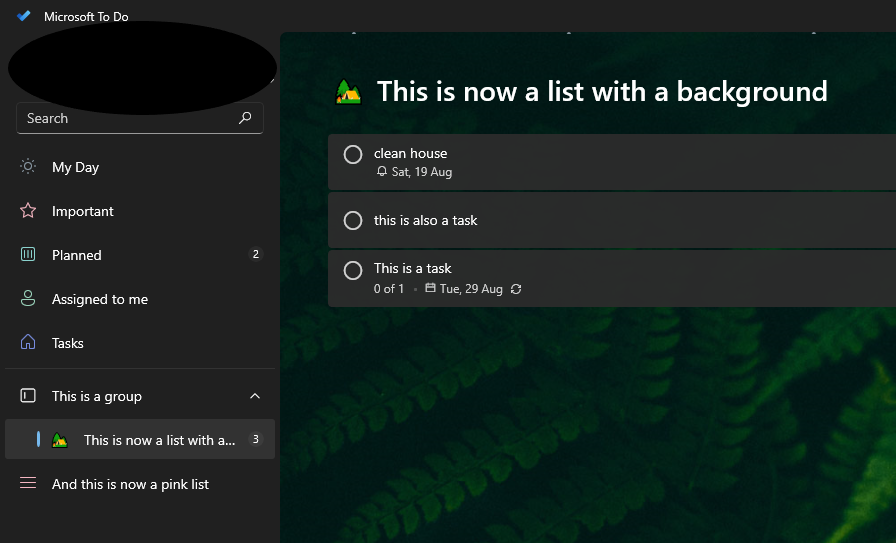
Tho the backgrounds are from a very limited selection of images and you can't add your own.
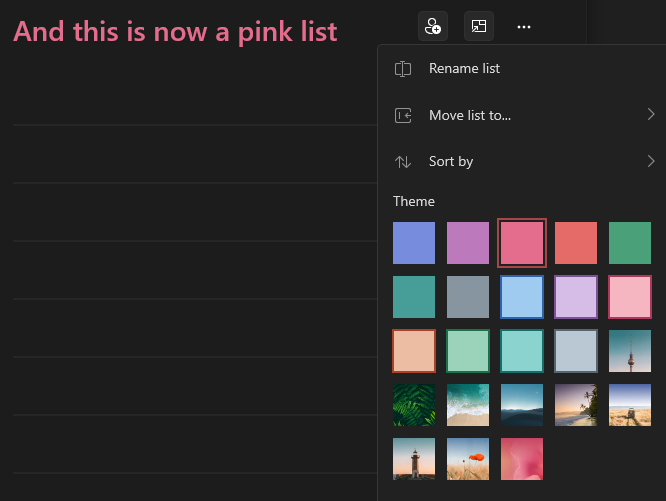
You can also move tasks to different lists and lists to different groups. And there is a mobile app that syncs automatically so you can take your lists with you. Something else you can do is share lists with other people and assign tasks to them.
There are different applications with the same main idea like Google tasks and Notion, but MS ToDo was the first one I used and I am still generally happy with it. I think Notion gives you more customizability but it also works a bit different I believe.
The main reason I added this is because I've used it to write down anything I want, I can organize everything, and it can remind me of things. I keep everything from birthdays to my wishlist to deadlines to a bucket list in there and I know I can easily find everything I need again. So maybe some other people might find some use out of it as well.
Unified Remote
Download
You could say Unified Remote is more of an app for your phone, and while you wouldn't be wrong, you also would. You see, Unified Remote is indeed an app that you use on your phone, but it's to control your pc from a distance. All you need is to install the Unified Remote server on your pc and the Unified Remote app on your phone. Make sure both are running, in the app go to "servers" just click on the right one and you can now control your complete pc from your phone.
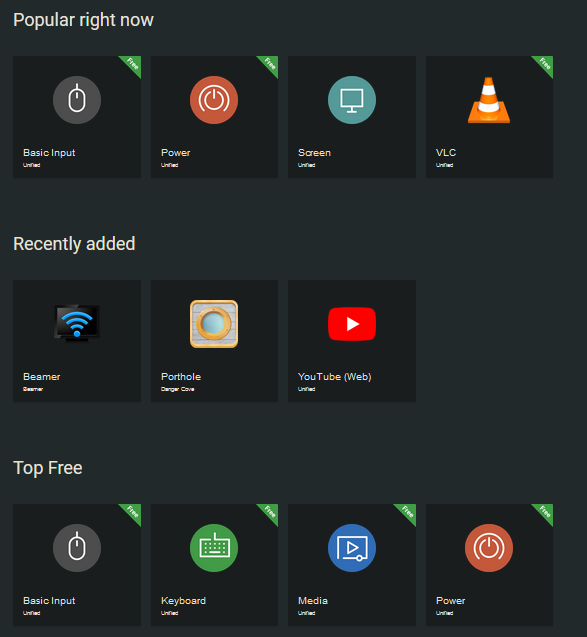
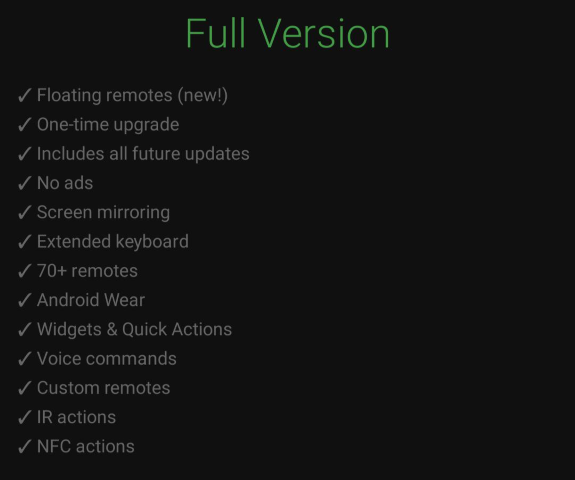
It's not only your mouse and/or keyboard, you can open apps, play or pause music, present slideshows, browse your files, shutdown your computer and much, much more. Unified Remote has 125 remotes that you can choose from giving you complete control over all your software and your pc entirely. You do need to pay if you want access to all the features and remotes but the free version has plenty of remotes already that will fit most of your needs. The full version is only €4.99 for lifetime and has more than just extra remotes so if you like the free app maybe the full version will have some extra functionality you like.
AutoHotkey
Download
Autohotkey is an interesting program, on it's own it doesn't really do anything, however you can make it do amazing things. Don't let me scare you, but Autohotkey is a scripting tool, what that means is that you can write some code that does things for you, from auto-clicking your mouse, to filling forms, to opening other software, to writing pre-determined text, to basically whatever you want by making your own keybinds or as they call it, hotkeys.
It's easier than other scripting languages but you'll still want to pay attention to their tutorial and try to understand the code and test the code they provide so you can hopefully start making your own scripts.
I won't be explaining it all here since they explain it very nicely but I'll show you a small script:
^1::{
    Run "https://www.autohotkey.com/docs/v2/Tutorial.htm#s1"
    Run "https://advanced-windows.netlify.app/software/other#autohotkey"
    MsgBox "Have fun learning!"
}
The ^1:: means The shortcut is Ctrl + 1, and it will do everything within the curly brackets {}.
The Run commands open the autohotkey tutorial and the autohotkey part of my site.
Lastly, The MsgBox command opens this neat little panel:

Everything within the braces "" is just what you want the command to use.
That script was entirely made with stuff from the tutorial so this is only scratching the surface of AutoHotkey
Browser extensions
Something else I wanted to talk about are browser extensions, they aren't software on their own but they can highly elevate how you like using a browser. It's as simple as finding the right one and downloading it, most of them also have settings so you can tweak them more to your liking but that depends entirely on the developer who made it.
The most popular reason for using extensions is to block ads within your browser in websites but I'll list a few others as example:
- Adguard Adblocker: You can guess what this one does, any adblocker will work mostly fine, they just all differ a little bit but you can even use multiple if you want. Firefox Add-on, Chrome Extension
- Dark Reader: Turns almost all sites into dark mode, wether they want it or not, you can choose specific sites as well or make your own color scheme even. Firefox Add-on, Chrome Extension
- Sponsorblock: It can skip all those annoying intros and outros, sponsorship and "like the video" segments and some more stuff in youtube videos. Firefox Add-on, Chrome Extension
- Return Youtube dislike: Shows the dislike counter again in youtube. Firefox Add-on, Chrome Extension
- Currency converter: Converts currencies from one to another. Firefox Add-on, Chrome Extension
- Unit converter: The same but for units; meters to feet, gallons to liters, hours to months, and so on. Firefox Add-on, Chrome Extension
- Simple translate: Let's you translate pages or words quickly. Firefox Add-on, Chrome Extension
And more, you get the idea.
In most browsers you can find them in the hamburger menu (the three horizontal stripes) or in the 3 in the top right of your browser, it might be called extensions or add-ons, but it's practically the same thing.
Wintoys
Download
I've talked about Powertoys but now let's talk about Wintoys. Despite the name it has nothing to do with Powertoys and is created purely by a separate developer. But it's also split up into multiple tabs, 6 in fact:
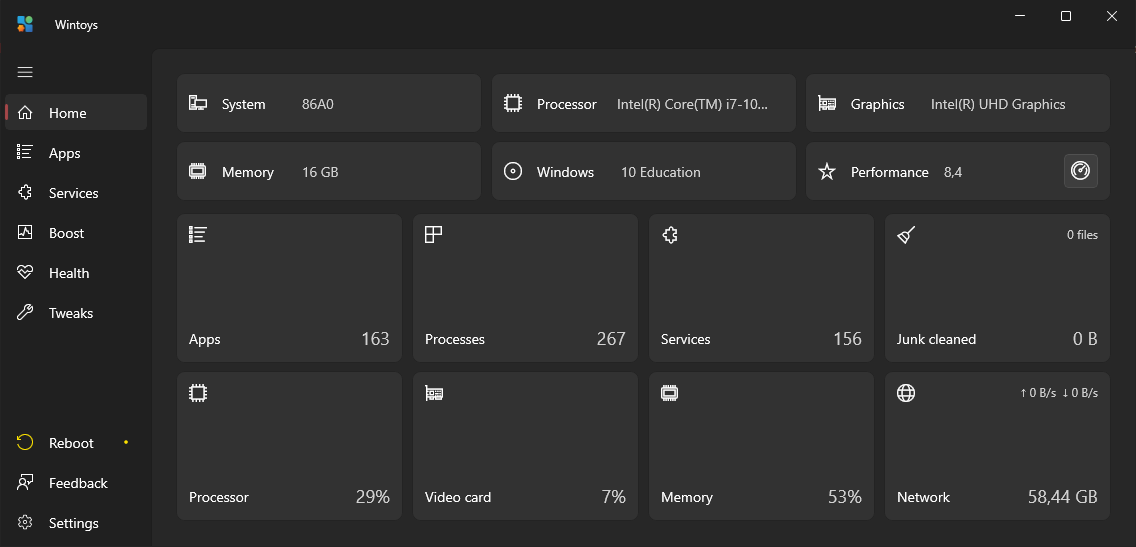
Home
View OS statistics and details about your system configuration: memory, gpu network, and cpu usage, what the parts are called, there's a performance check where you can run a short benchmark and much stuff you have installed and cleaned up on your computer.
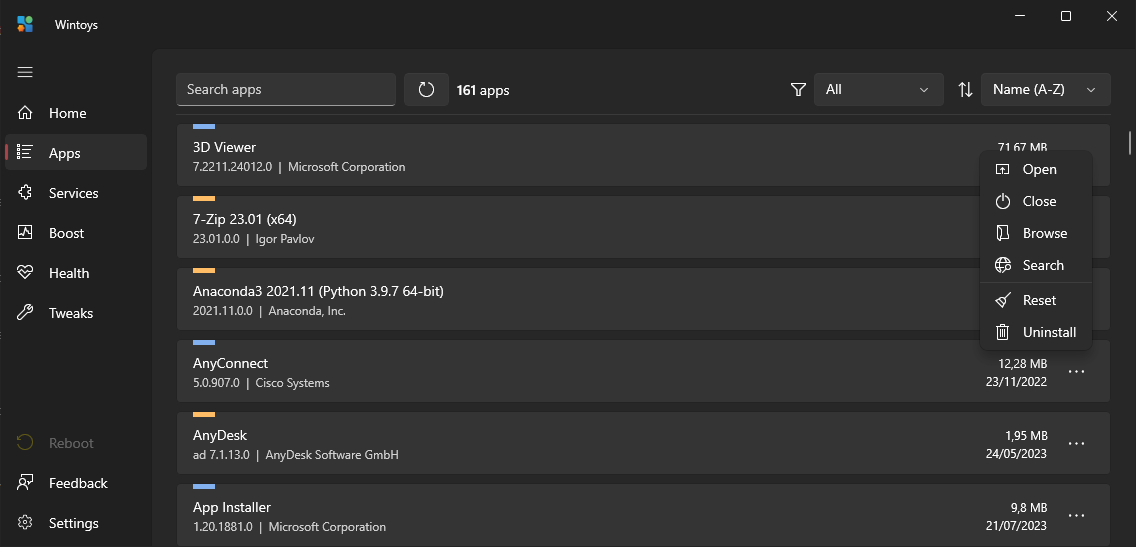
Apps
Uninstall anything you don't need, even apps that don't allow uninstall by default, having a complete list of both Win32 and Store apps.
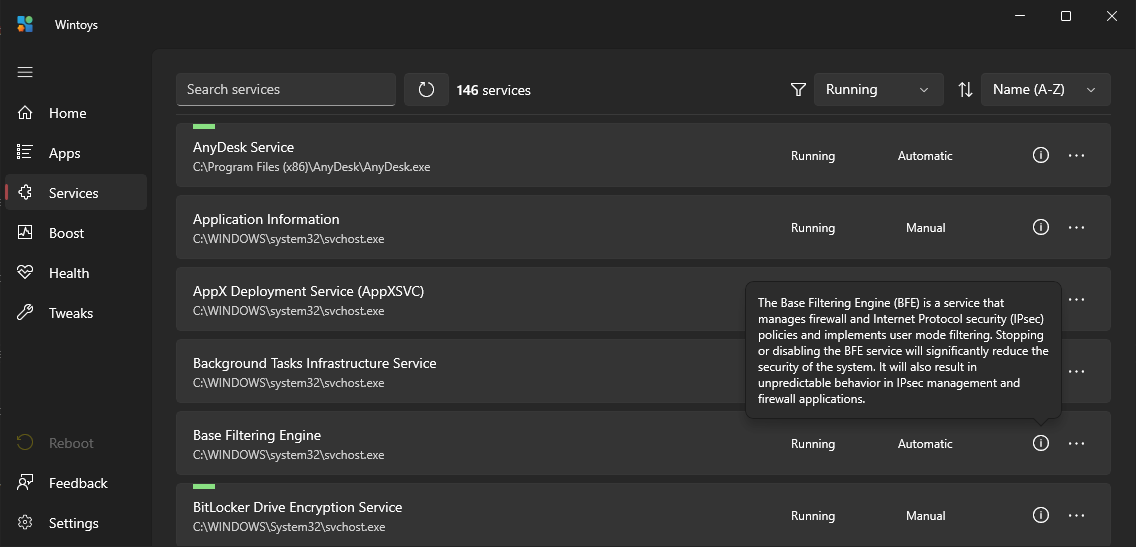
Services
Disable unnecessary services that use system resources by making informed decisions with the help of detailed descriptions and instructions about when it's recommended to disable them.
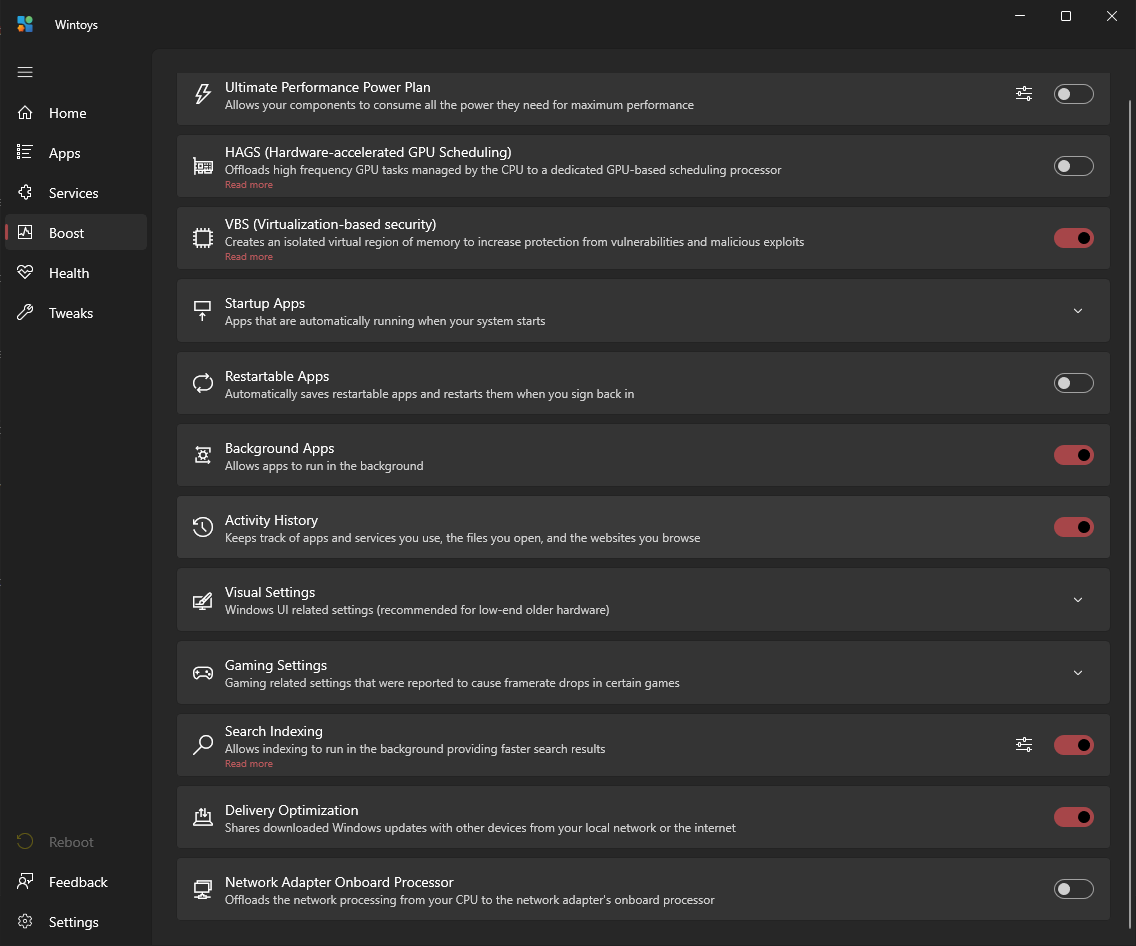
Boost
Boost your system's performance by applying curated settings that might significantly impact your OS responsiveness or games' framerate.
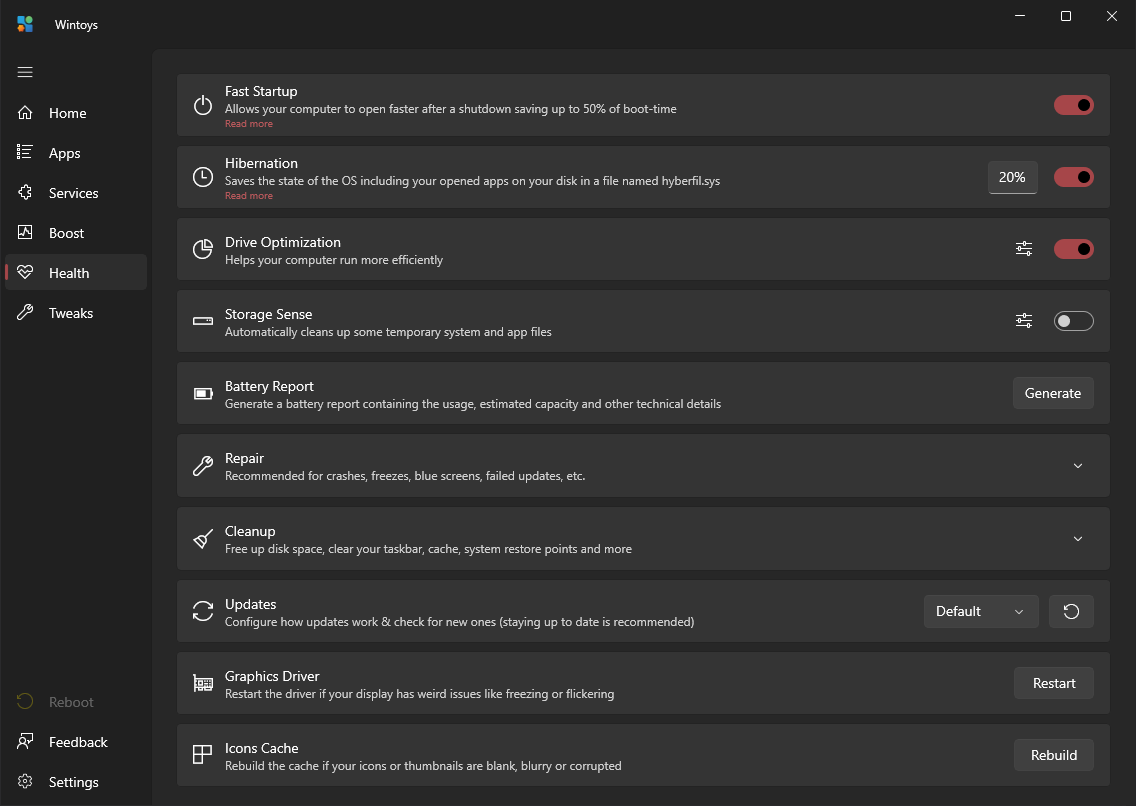
Health
Keep Windows in a healthy state with the help of optimization settings and advanced tools for repairing and debloating system components and files.
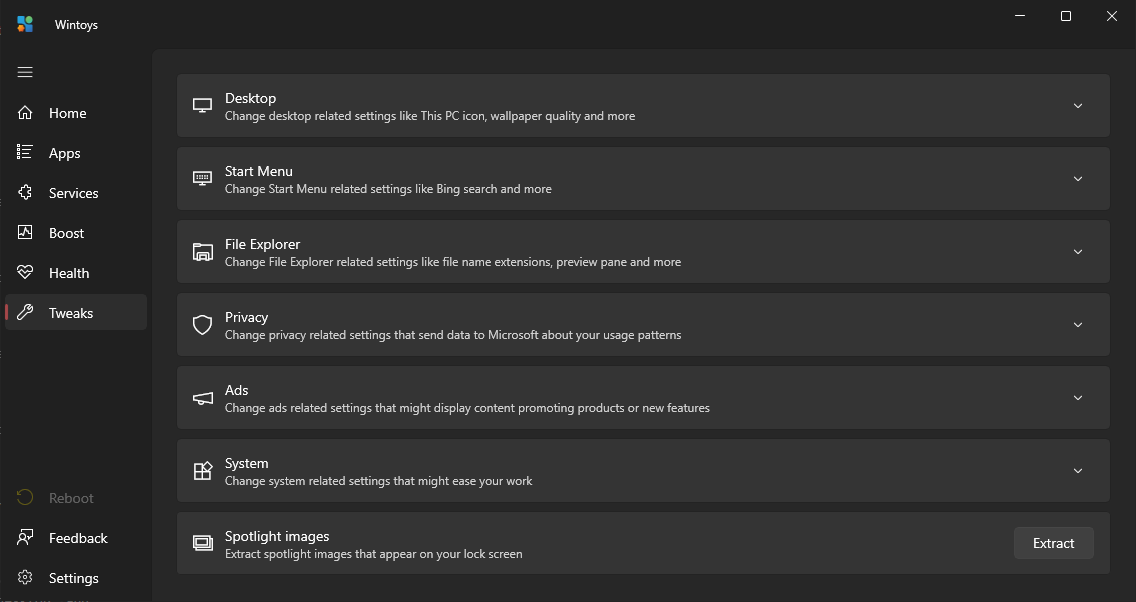
Tweaks
Take control over your ads and privacy settings so you feel more relaxed while using Windows.
Tweak and configure Windows the way you like with settings for the start menu, file explorer, desktop, and
many more.