Offline Commands
To get started type just "cmd" into your Windows search bar and open Command Prompt.
Or, search for Terminal, which is Windows' new fun place to use commands. It has tabs, multiple command lines: Windows Powershell, Command Prompt and Azure Cloud Shell.
Though I will be using Command prompt in Terminal.
Some of these commands will need admin privileges so you might want to open it as administrator
I'll be using cmd as a substitute for Command prompt from here on out. I obviously can't cover every single command and every single option, I'm just showing you some commands I found interesting or useful.
Terminal
Let's get started with Terminal, first I'm going to set cmd as my default profile. We can do this by using the keybind Ctrl + , or by hitting the ˅ at the top next to your tab and go to settings. Change the first option to cmd.

All this does is make sure that next time we open Terminal the first tab will be cmd instead of Powershell.
Now either use the keybind Ctrl + Shift + 2 or hit the ˅ again and choose for cmd to open well.. cmd.
Let's start with some personalization commands:
You can change the colors of the background and text with color and 2 numbers or 'a' through 'f', like so:
color 06
The first number indicates the background and the second number indicates the text, with the number corresponding with these colors:

You can reset the colors by just color on its own.
You can also change the prompt, the little C:\Users\, with whatever you want like so:
prompt Windows$G$S
To change it to Windows> , I do recommend adding the $G or some other special character to make the difference between the prompt and your commands more obvious.
The special characters can be added with these codes:
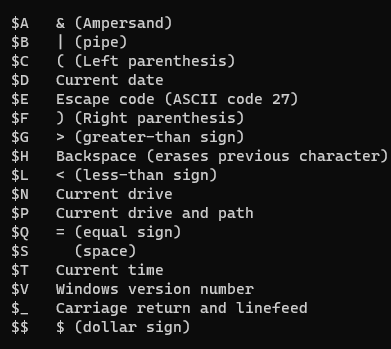
Or again reset it by using just prompt on its own.
Lastly you can also change the title of your tab/window by using title as follows:
title Advanced Windows
Will change the title to Advanced Windows
Info and basic commands
Now that you changed your cmd to your liking let's start with the real stuff.
First up if you ever want to find a command, you can see most commands with:
help
And if you want more info on a specific command you can type the command followed by /? or type help followed by the command for example:
time /?
help time
Will both display info on the time command.
systeminfo will give you all the info about your computer
If you only want info about something specific you can put findstr followed by what you want to search for after any command:
systeminfo | findstr "Model"
Will return the system model
If you want all the info but outside of cmd you can use clip to copy it to your clipboard so you can paste it wherever you want:
systeminfo | clip
Or use >> to immediately put the output into a file, if the file doesn't exist it will create a new one, if the file does exist already it will add the output to the end of the file:
systeminfo >> systeminfo.txt
After which you can open the file by simple typing its full or relative path (my cmd is in C:\Users\%Username%):
C:\Users\%Username%\systeminfo.txt
systeminfo.txt
If you don't know what path you're in you can easily check it with cd or change the path by adding where you want to go after the cd:
cd documents
Changes my path from C:\Users\%Username%\ to C:\Users\%Username%\documents. cd also works with full and relative paths.
You can open the current path in file explorer by just typing:
explorer
In reverse you can also type cmd right in the explorer search bar to open the folder in Command prompt (not in terminal).
If you want to know your mac addresses just use:
getmac /v
Know what filetypes get opened by which programs use assoc? You can also change what programs open them:
assoc .mp4=VLC.vlc
Want an empty prompt again? You can clear everything with:
cls
Shut you pc down after an hour? use:
shutdown /s /t 3600
Or cancel the shutdown if you changed your mind:
shutdown /a
Computer health
You can also monitor and fix your computer health with cmd.
Storage running low?
Get rid of temporary files with these 2 commands:
del /q /f /s %temp%\*
del /s /q c:\Windows\temp\*
Check for power or energy problems:
powercfg /energy
Or for batter problems you can use:
powercfg /batteryreport
These will both give you a complete report you can just copy and past the location back into cmd to open it.
Computer having weird problems?
Check your disk for errors and fix them with:
chkdsk /f
Or check for sector issues using:
chkdsk /r
Something else you can try is sfc to check system files and replace them if necessary:
sfc /scannow
Still having issues? Use DISM to check and fix your system image.
You can run a quick check with:
DISM /Online /Cleanup-image /CheckHealth
Go deeper with a longer scan:
DISM /Online /Cleanup-image /ScanHealth
If there were problems found you can restore these using:
DISM /Online /Cleanup-image /RestoreHealth
Something running that's not supposed to?
You can find all running tasks using tasklist or search for a specific task (in this case called script) like so:
tasklist | findstr vlc

And then kill it using the PID like:
taskkill /f /pid 9284